
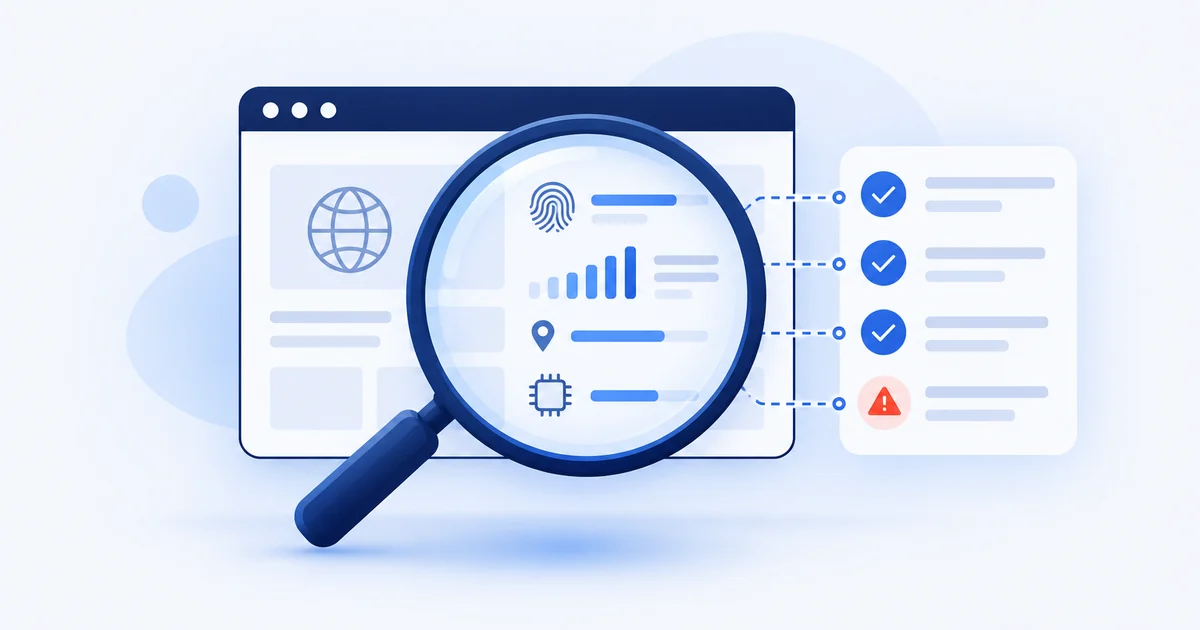
To test your browser fingerprint, run it through a few free checking tools. Cover Your Tracks (EFF) tells you how unique your browser looks, AmIUnique compares you with a research database, BrowserLeaks shows the raw values sites can read, and CreepJS looks for signs of tampering. Run more than one, because each looks at different signals.
Why test your fingerprint at all?
A browser fingerprint is built from many ordinary details your browser shares. You can’t see it by looking at your settings, so the only way to know what a site can read is to ask a tool that reads it the same way.
Testing is useful in three situations:
- You want to know how identifiable your everyday browser is.
- You changed something (a browser, an extension, a VPN or proxy) and want to see the effect.
- You manage several browser profiles and want to check each one looks consistent.
Which free tools can you use?
| Tool | Run by | Best for |
|---|---|---|
| Cover Your Tracks | Electronic Frontier Foundation | A quick view of how unique your browser is, and whether your tracker blockers work |
| AmIUnique | A research team at a French university | Comparing your fingerprint with statistics from other visitors |
| BrowserLeaks | Independent collection of tests | The raw values: IP and WebRTC, canvas, WebGL, fonts and more |
| CreepJS | Open-source research project | Spotting inconsistencies and signs of tampering |
Cover Your Tracks is an EFF project. It tests how unique your browser is and how well your tracker blockers hold up against simulated trackers (about page).
AmIUnique is a research site that studies the diversity of browser fingerprints. It shows your own fingerprint next to statistics from other visitors. Note that it saves a cookie for a few months when you click through to your results, so run it knowing that.
BrowserLeaks collects tests for IP address and WebRTC leaks, browser data readable by JavaScript, canvas, WebGL and font fingerprinting, geolocation, and more, including some experimental ones such as a DNS leak test.
CreepJS is described by its authors as a research and education project on fingerprinting. It looks for signs of tampering with browser functions and for inconsistencies, which makes it a good check for a browser that claims to hide things (project page).
Other checkers exist, including commercial ones that give a score. Treat any single score with care: tools measure different things, and a number only means something if you know what it checks.
How do you run a clean test?
- Use a fresh state. Open the tool in the browser or profile you want to test, without other tabs doing things in the background.
- Run it twice. Once with your VPN or proxy off, and once with it on, so you can compare.
- Run it in more than one tool. If two tools disagree, the difference tells you something.
- Write the results down. Note the date, the browser version and any settings, so you can compare later.
- Run it again after a change. A browser update, a new extension or a new proxy can change the result.
What should you look for in the results?
1. Uniqueness. Tools such as Cover Your Tracks and AmIUnique tell you how rare your combination of values is. The rarer it is, the easier you are to follow. A common setup is harder to single out.
2. Contradictions. This matters most. Look for values that don’t fit together:
- A time zone that doesn’t match the country of your IP address.
- A language that doesn’t fit your region.
- An operating system in the browser’s identity that doesn’t match the fonts or graphics hardware reported.
- A screen size that doesn’t fit the device the browser claims to be.
Contradictions are a stronger signal than any single unusual value, because ordinary devices rarely produce them.
3. Leaks. Check that your real IP address doesn’t appear in the WebRTC results, and that DNS is handled where you expect. Our guide to WebRTC and DNS leaks explains both.
What do the results not tell you?
- They don’t tell you what a particular website does. A test shows what a site could read, not what it chooses to use or how.
- They are a snapshot. Results change with browser updates and settings.
- A “clean” result on one tool isn’t a guarantee. Different tools look at different signals, so a pass on one says nothing about another.
Frequently asked questions
Is it safe to run a fingerprint test?
These tools read the same details any website can read. Check each site’s privacy notice, and be aware that some, such as AmIUnique, save a cookie.
Why do different tools give different answers?
Each looks at different signals and compares you against different data. A tool that measures uniqueness and one that looks for tampering answer different questions.
How often should I test?
After you change a browser, extension, VPN or proxy, and from time to time as a check.
Does a unique fingerprint mean I’m being tracked?
No. It means you could be followed by a site that chose to. Whether anyone does is a separate question.
Can I make my fingerprint less unique?
You can reduce what your browser reveals or keep separate, consistent identities for different purposes. Either way, test again afterwards to confirm the change worked.
Key takeaways
- Use more than one tool. Each checks different things.
- Compare with and without your VPN or proxy.
- Contradictions between values matter more than any single unusual one.
- Test again after every change.
Last updated: 2026-10-26. By the VANE Team.